


What NineSixteenAI does
Most video is filmed wide: a camera on a tripod, a phone held sideways, a screen recording. Shorts, Reels, TikTok and Facebook Reels want the opposite, a tall 9:16 picture that fills the phone. NineSixteenAI is a free horizontal to vertical video converter that sits in between. You open a landscape video, decide what the tall frame should show, and download vertical MP4 files that are ready to post.
Why I built it
I'm Pankaj Kalra. I make long videos for my YouTube channel, Red Blue Kids TV, and every week I also wanted Shorts from them. That's where it got frustrating.
Online tools meant uploading my video first. With big 4K files, the upload alone took longer than the actual editing. Desktop editors skip the upload, but making a good vertical Short from a long video there takes real editing skill: moving the crop by hand, shot after shot, so nobody gets cut out of the frame.
So I built my own tool. The AI goes through the video and suggests where the vertical crop should sit in every moment, so the people stay in frame, and the tool cuts the long video into Shorts that are ready to post. I still pick the moments and fix a shot when I want to, but the slow part is done for me. Everything runs in the browser, so there's no upload and my video never leaves my computer.
It now takes a fraction of the time it used to, and I spend that time making the long videos instead. The go-kart race in the examples on this site is one of my own videos.
Pankaj Kalra, founder of NineSixteenAI · Read the full story →
How to turn a horizontal video into a Short
- Open your video. Drop it on the page or click to choose it. MP4, MOV and WEBM all work, 4K included.
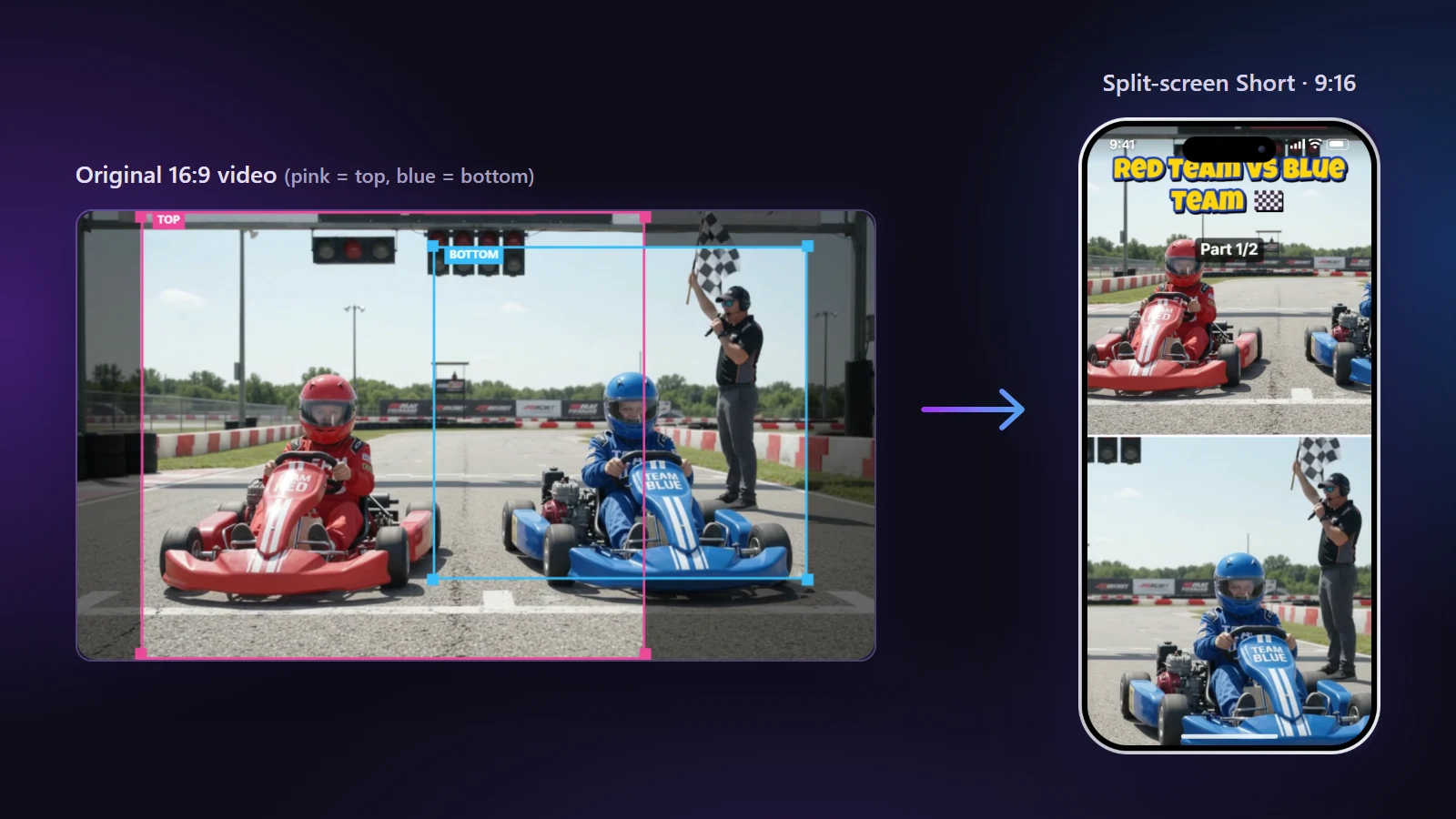
- Pick a layout. Center Crop fills the screen. Split Screen stacks two people. Blur Fill and Letterbox keep the whole picture. The phone preview changes as you click.
- Frame it. Drag the box over the original video, or switch on AI Smart Crop and let it follow the people. You can still fix any moment by hand.
- Trim and split. Cut a slow start in the Trim tab, then keep one clip or split the video into parts of 15, 30 or 60 seconds, equal parts, or your own times.
- Add text, emojis, a logo and sound. Titles, "Part 1/3" labels, emoji stickers, your logo, music or a voiceover.
- Make the Shorts. Every part comes out as a 1080×1920 MP4. Download them one by one or all together as a ZIP.
Which layout should I use?
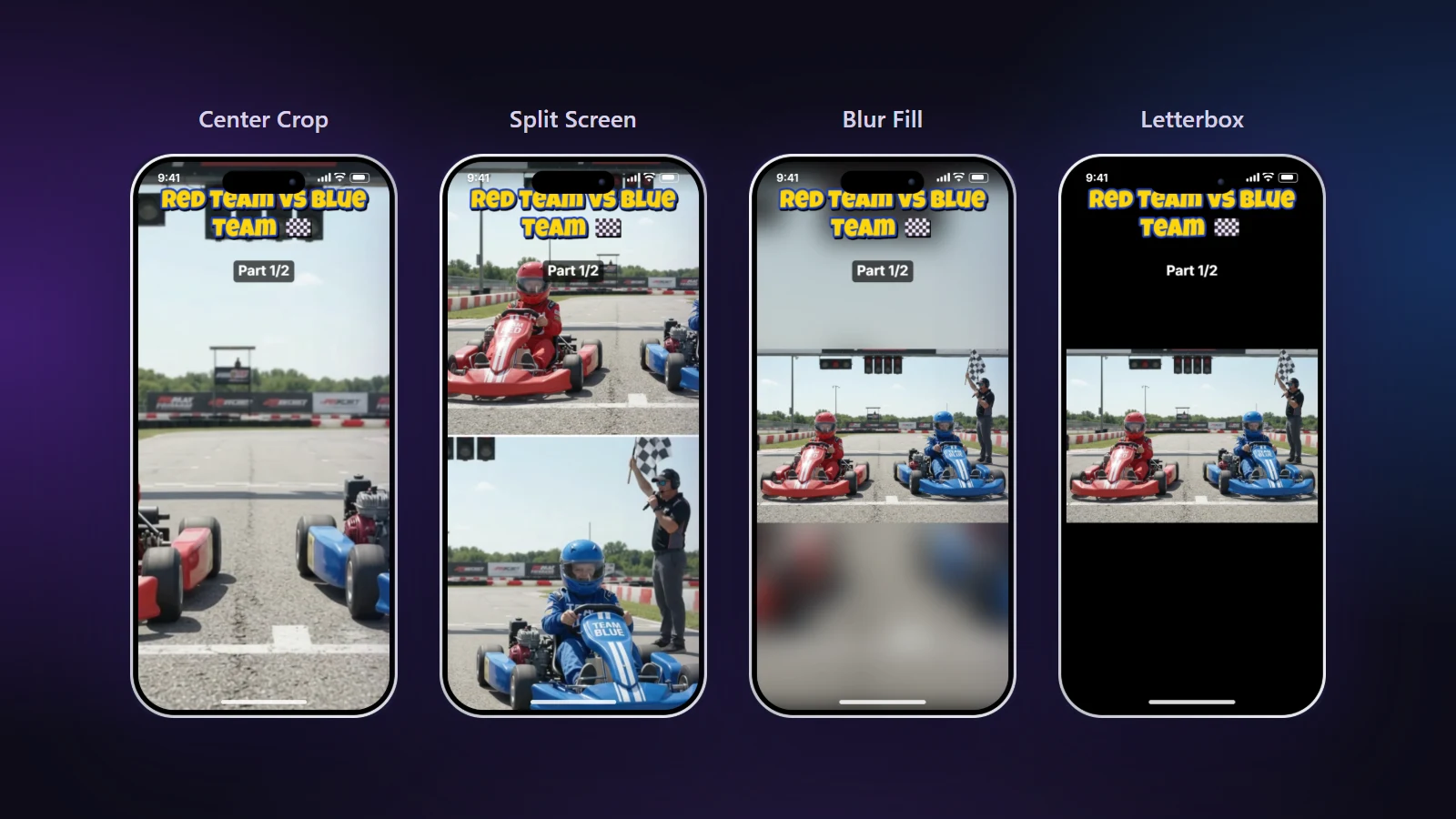
There isn't one right answer, because it depends on where the action is. The rule of thumb we use:
- One main person or thing: Center Crop, ideally with AI Smart Crop so the frame follows them around.
- Two people far apart, like a race, an interview or a reaction: Split Screen.
- Everything matters, like a landscape, a slide or a game map: Blur Fill or Letterbox.
Videos change halfway through, and you can change the layout with them. Press Change at in the Framing tab and the next section gets its own layout. There's more on choosing in our guide to crop, split, blur or letterbox.
Why it runs in your browser
With most online editors, uploading a 4K video is the slowest part, and afterwards your footage sits on someone else's server. Here, the video engine and the AI model both run inside the browser tab, so there's no upload at all. Our 683 MB 4K test file opens in a second or two. You can read how that works in why browser video tools are private.
The trade-off is that speed depends on your computer. A recent laptop handles 1080p comfortably. 4K footage takes about twice the length of the video to export, because decoding 4K is heavy work.
Tips for better Shorts
- Keep titles out of the bottom fifth and away from the right edge, where the app's buttons sit. Switch on App buttons above the phone preview to see them. Our safe-zones guide has a diagram.
- Start every part on something happening. A Short that opens on someone walking into frame loses people in the first second. If your video has a slow start, AI Auto-trim in the Trim tab can find it for you.
- 1080×1920 is enough. A 4K vertical export doesn't look any sharper on a phone, it just takes longer.
- If you use music, use music you're allowed to use, and let it dip under people talking.